
Quick Start Guide
Welcome to Macrion! This guide walks you through downloading the app, installing it on your phone, and running your first automated tap in under two minutes.
1. Download & Install
Official APK releases are available directly on GitHub:
👉 Download Latest Macrion Release
Under the Assets section of the latest release, choose the file matching your device:
| Download Option | Which device is it for? |
|---|---|
...-arm64-v8a.apk | Recommended. Choose this for almost all modern Android smartphones and tablets. |
...-universal.apk | Choose this if you are not sure which processor your device uses, or for older phones. |
...-x86_64.apk | Choose this if you are running Macrion inside an Android emulator on your PC (such as BlueStacks, LDPlayer, or Android Studio). |
After downloading, tap the file in your notification bar or downloads folder and tap Install.
Note for Android 13+ Users
If Android prevents you from enabling Accessibility with a message saying "Restricted setting: For your security, this setting is currently unavailable", open your phone's Settings → Apps → Macrion, tap the three dots (⋮) in the top-right corner, and tap Allow restricted settings.
2. Create Your First Scenario
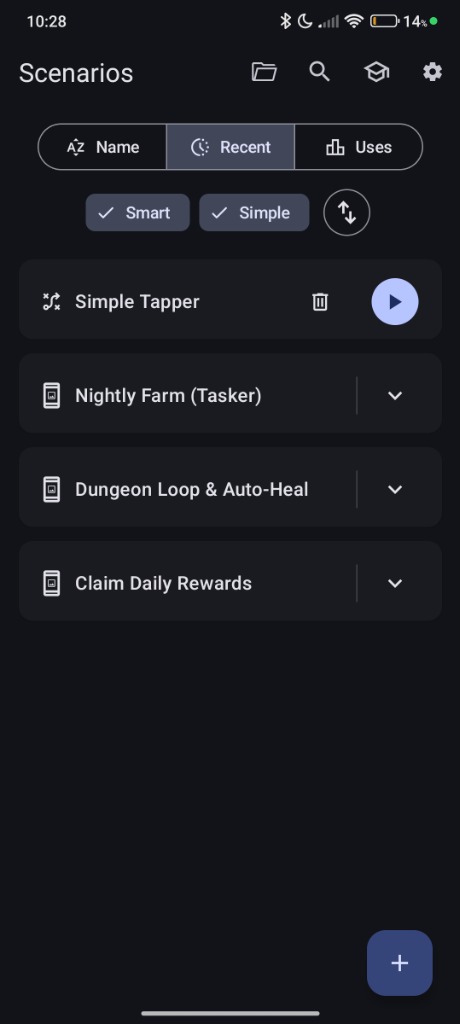
Open the Macrion app. On the main screen, tap the + (New Scenario) button in the bottom right corner.
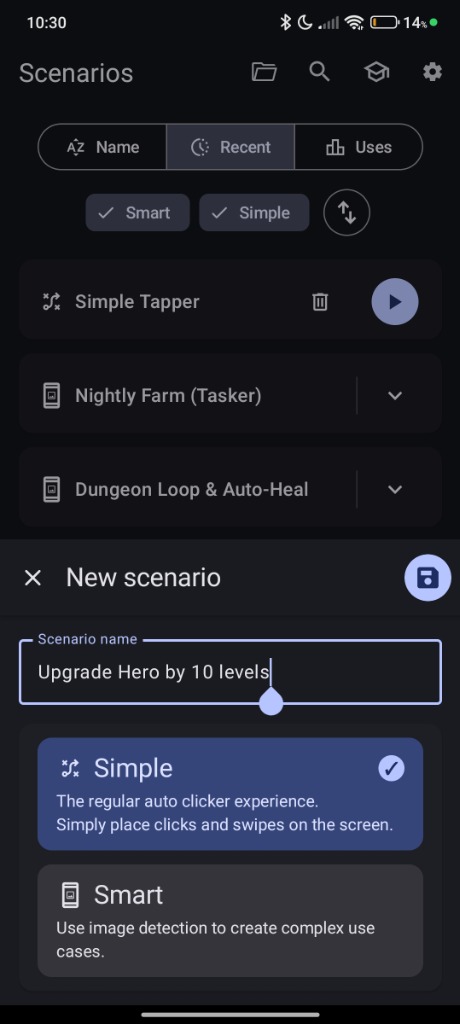
In the New scenario dialog that slides up:
- Enter a name for your automation (for example, Upgrade Hero by 10 levels or Simple Tapper).
- Tap the Simple card (the regular auto-clicker experience).
- Tap the Save button in the top-right corner of the dialog.
Your scenario is now ready and appears on your home screen!
3. Place Your Click Target & Start Tapping
- On your scenario card, tap the circular Play / Launch (▶) button.
- Macrion will minimize, and the Floating Control Panel will appear docked on the side of your screen.
- Open the game or app you want to automate.
- Tap the
+button on the floating sidebar to drop a circular click target on your screen. - Drag the target marker so the center white dot sits directly over the button you want to tap.
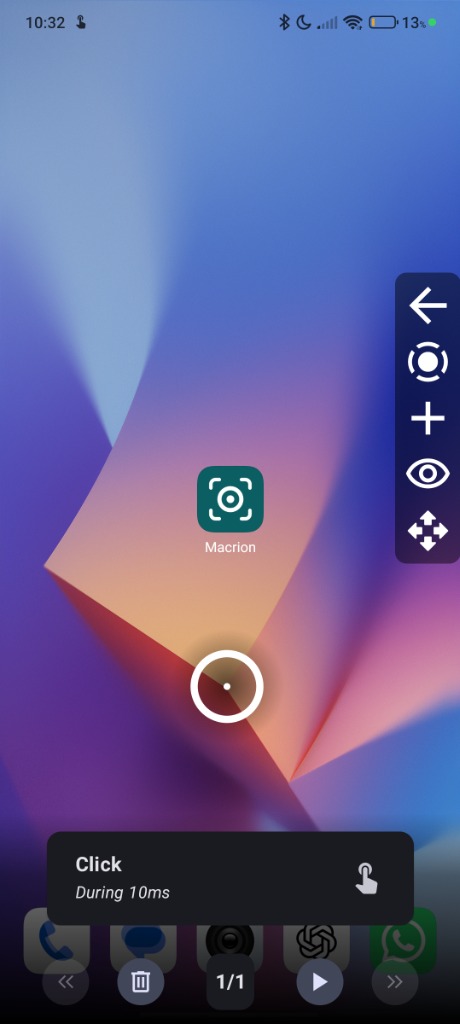
- Tap the Play (▶) button on the bottom toolbar. Macrion is now tapping for you!
- Tap Pause (⏸) at any time to pause, or tap the back arrow (←) on the side panel to close the overlay and return to the app.
Where to Go From Here
Guides Under Development
The guides section is currently under active development. Step-by-step walkthroughs, everyday workflow tutorials, and advanced detection guides will be added soon.
- Documentation Reference — Explore comprehensive reference documentation covering all app settings, screen condition types, triggers, actions, and device safety features.
- Changelog — Review the complete version history and release notes for Macrion.
- GitHub Repository — View source code, report issues, or star the project.